

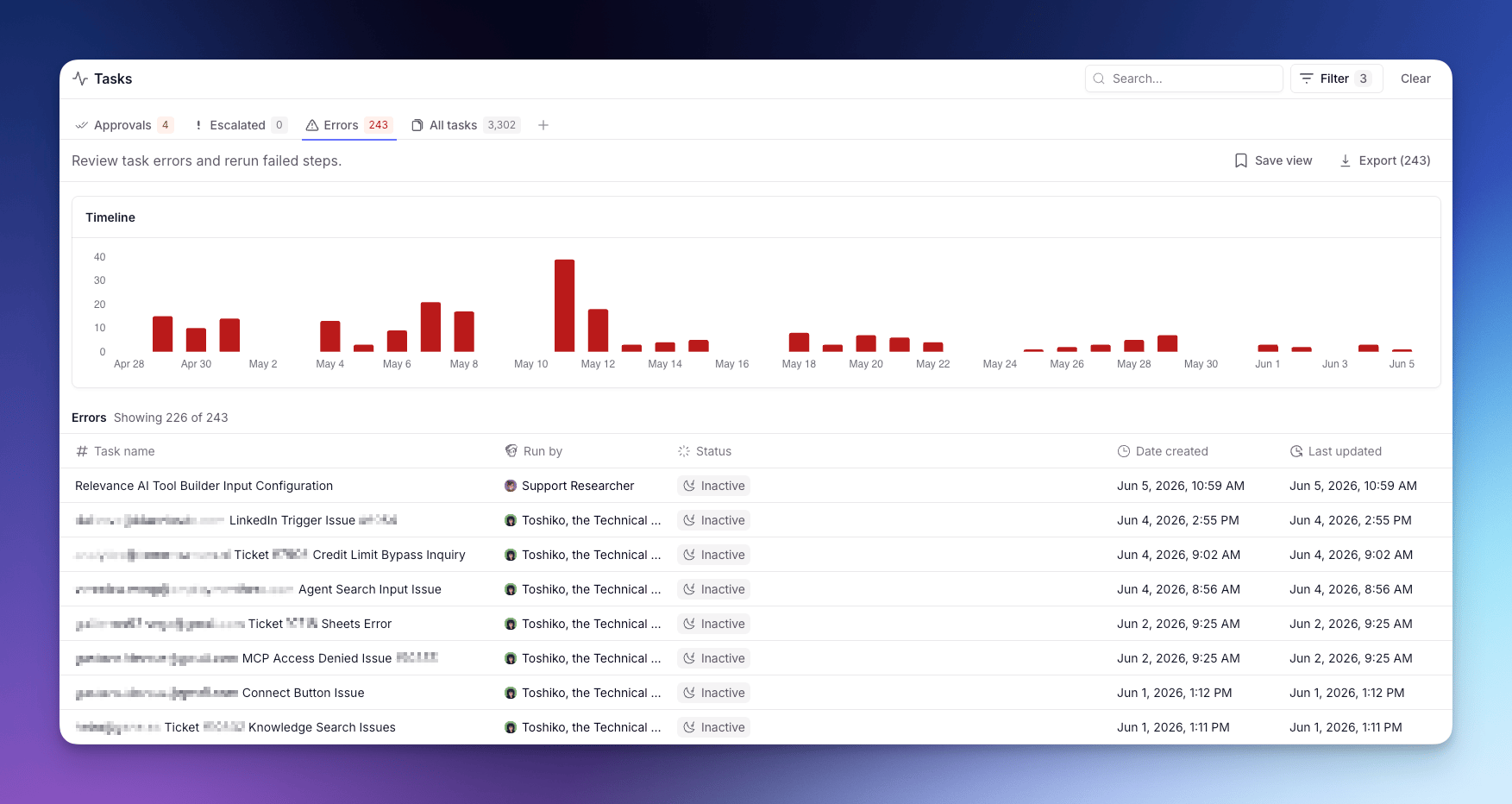
Each Task is a single run of work (a conversation or workflow) carried out by an Agent or Workforce. For what a Task is and how to read one, see Tasks.
Tabs
The page is split into tabs:- Approvals — Tasks waiting on your approval before they can continue.
- Escalated — Tasks the Agent paused on to ask you a question.
- Errors — Tasks that hit a Tool failure or runtime error.
- All tasks — every conversation across your Agents and Workforces.
Bulk actions
When you open a Task, the page checks for other Tasks from the same Agent in the same state and surfaces a bottom sheet so you can act on the whole group at once. Available bulk actions:- Approve or Reject pending approvals.
- Rerun errored Tasks from the failing step.
A Task with more than one pending approval isn’t bulk-actionable and stays one-at-a-time.
By agent view
The Tasks page lets you switch to a “By Agent” grouped view, which organizes the task list by agent instead of chronologically. Use this view when you want to see which agents are handling the most work or to drill into a specific agent’s task history. Each row in this view represents one agent. Click the expand chevron on an agent row to open a nested task sub-table showing that agent’s individual tasks. The sub-table displays up to 25 tasks at a time. If there are more tasks matching the current filters or search, a Show more button appears at the bottom of the sub-table to load additional tasks. Click any task row in the sub-table to open the full task detail drawer, where you can review conversation history, tool usage, outputs, and errors. The sub-table automatically reflects any filters and search terms applied to the parent view — only tasks matching those criteria appear. Sub-table states:- Loading — A loading indicator appears while the sub-table fetches tasks.
- Error — If the fetch fails, an error message is shown in place of the task list.
- Empty — If the agent has no tasks matching the current filters, the sub-table shows “No tasks to show”.